Tensorboard on gcloud
> date: August 22, 2016 | tags: machine-learning
Word Vectors are an amazing creation from Tomas Mikolov. If you are into deep learning and NLP, you likely are familiar with them. One amazing feature of word vectors is they can be interpreted using nearby words with cosine or euclidean distance metrics. For example, consider this infamous vector linear combination:
vec('king') - vec('man') + vec('female') = vec('queen')For convenience, these vectors are put together as a matrix and are called word embeddings. This embedding matrix row ID is mapped to a list of words that can be thought of as a vocabulary of the whole text you are working with. Each row represents a word, and columns are features. These features need to be learned using methods suggested in the landmark paper Efficient Estimation of Word Representations in Vector Space.
There are many methods for representing high dimensional vectors in lower dimensions for viewing and interpretation. A well-known method for converting from higher to lower dimensions is PCA and t-SNE. SKlearn has amazing APIs for them. t-SNE is amazing, but its important to know how to use it (you can learn at distill-pub).
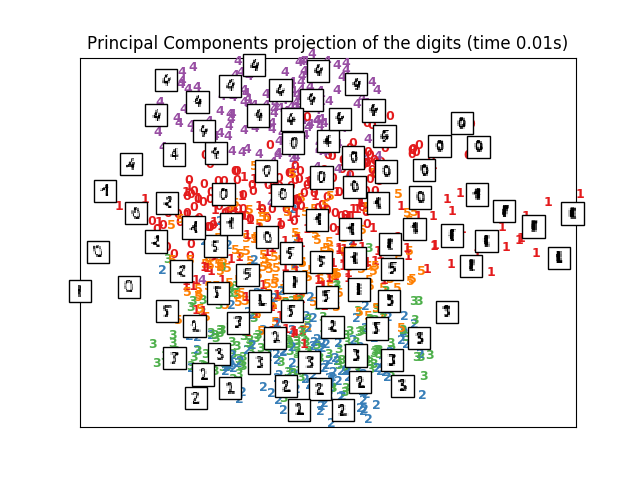
Ultimately, Google’s tensorboard is the best I have come across so far for visualizing word embeddings in 3d. While taking a CS20si course online, the instructors notes/slides/code showed how to use it.
Setting up gcloud instance
CS231n has a great tutorial for painlessly setting up a Google cloud instance with ubuntu. By the end of cs231n setup tutorial, you will have an instance running in the gcloud by the default name “instance-1”. I strongly suggest getting the gcloud-console-app, which makes it easy to stop and start the instance since the $$$ meter is ON once the instance starts.
Some additional settings to tweak:
Install gcloud compute tools for command line tools.
Tensorboard runs in the default port 6006. You have to set up firewall rules. Go to the Google cloud console dashboard, then select VPC network on the sidebar and select Firewall rules.
Enable connecting to serial ports for debugging startup scripts.
Viewing embedding on Tensorboard
Tensorboard is used to display summaries during training on losses, display the computational graph, and, in our case, display embeddings and perform t-SNE on them.
The following processing is done on the local machine:
vocab_words = np.load("vocab_words.npy") # vocab_size > 100000
word_vectors = np.load("word_vectors.npy") # vector of dimensions (vocab_size, feature_size)
tb_vocab_size = 10000
Tensorboard requires the metafile for vocabulary to be in tsv format:
import csv
local_tb_dir="./gcloud_tb/"
with open(local_tb_dir+"/vocab.tsv", "wb") as fp:
    wr = csv.writer(fp, delimiter='
')
    wr.writerow(vocab_words[:tb_vocab_size])
Create tensorboard metafiles:
visualize_this_embedding = word_vectors[:tb_vocab_size]
print(visualize_this_embedding.shape)
metadata_path = "/home/<username>/projects/tb_visual/vocab.tsv"
visualize_embeddings_in_tensorboard(visualize_this_embedding, metadata_path, local_tb_dir)
The visualization function:
import tensorflow as tf

def visualize_embeddings_in_tensorboard(final_embedding_matrix, metadata_path, dir_path):
    """
    view the tensors in tensorboard with PCA/TSNE
    final_embedding_matrix: embedding vector
    metadata_path: path to the vocabulary indexing the final_embedding_matrix
    """
    with tf.Session() as sess:
        embedding_var = tf.Variable(final_embedding_matrix, name='embedding')
        sess.run(embedding_var.initializer)

        config = projector.ProjectorConfig()
        embedding = config.embeddings.add()
        embedding.tensor_name = embedding_var.name
        embedding.metadata_path = metadata_path

        visual_summary_writer = tf.summary.FileWriter(dir_path)
        projector.visualize_embeddings(visual_summary_writer, config)

        saver_embed = tf.train.Saver([embedding_var])
        saver_embed.save(sess, dir_path+'/visual_embed.ckpt', 1)
        visual_summary_writer.close()
Setting up remote and local scripts
Handy bash aliases for executing command line arguments:
#serve tensorboard on google computer
alias gclogin="gcloud compute ssh --zone=us-west1-b instance-1"
alias gcserial="gcloud compute connect-to-serial-port instance-1"
alias gc_tb_clean="gcloud compute ssh <username>@instance-1 --command 'rm -rf ~/projects/tb_visual/*'"
function gc_tb_scp () {
  gcloud compute scp $@ <username>@instance-1:~/projects/tb_visual/ ;
}
alias gc_tb_update="gc_tb_clean && gc_tb_scp"
alias gc_tb_restart="gcloud compute ssh <username>@instance-1 --command 'bash /home/<username>/bash_restart_tb &'"
Create bash_start_tb bash script:
#! /bin/bash
export PATH="/home/<username>/programs/anaconda2/bin:$PATH"
source /home/<username>/programs/anaconda2/envs/tensorboard/bin/activate tensorboard
/home/<username>/programs/anaconda2/bin/tensorboard --logdir=/home/<username>/projects/tb_visual --port=6006 &
Create bash_restart_tb script:
#! /bin/bash
for pid in $(ps -ef | grep "tensorboard.py --logdir" | awk '{print $2}'); do sudo kill -9 $pid; done;
bash /home/<username>/bash_start_tb
Update Tensorboard at will
- To clean and update:
gc_tb_update <local_folder_containing_tb_meta_files>/* - Restart tensorboard:
gc_tb_restart - When viewing tensorboard, use http and not https:
http://<instance-ip>:6006/
That’s it! Just don’t forget to shutdown your instances after usage :)
MIND = BLOWN
Let me know if you have any questions!